Updated 5 October 2026
Dashboard
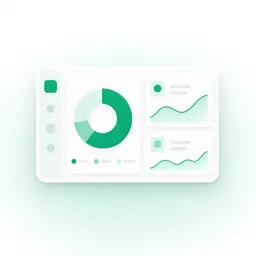
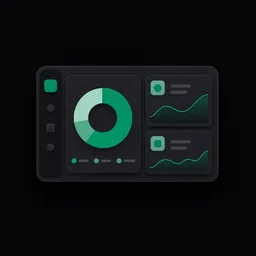
See sales, payment methods, best sellers, recent activity and top customers for the period you choose, and stay on top of alerts and approvals.
Reporting days and activity timestamps use the workspace timezone and clock format, consistently across devices.
Choose a Period and Source
The Dashboard opens on This week. Use the period button for Today, This week, This month, This year or a Custom range, and the source button to look at all revenue, in-person sales, online orders, appointments or events. When Checkout is on, New sale opens checkout. Your choices are kept in the address bar, so a view can be bookmarked or shared, and they follow the locations you have selected.
Completed Events Only
Only events explicitly marked completed contribute their accepted quote total to the owner's dashboard. Accepted, pending or cancelled events and organized plans are excluded. Event revenue is dated when the owner completes it, not when the quote was accepted or the event was scheduled. Archiving does not remove completed revenue.
The notice links to the Events report with your date range. The Events source also filters Sales, Items and Customers reports. Event rows in Recent activity open their request.
Summary Cards
Four cards sit at the top: sales for the chosen period, the number of sales (labelled for the source you picked), the average sale, and this month's total with its count. Labels and icons change with the source, so choosing Appointments shows appointments instead of transactions.
Sales Chart and Payment Methods
The chart adapts to the period: Today shows 24 hourly bars, This week the last seven days (five on phones), ranges up to about six weeks group by day, and longer ranges group by month. Empty days show as zero so the timeline stays continuous, and hovering or focusing a bar shows its exact amount. Beside it, the payment methods panel shows each method's total as a share of the period, with the leading method highlighted.
Top Items and Services
Ranks best sellers for the period with their quantity sold and revenue; with the Appointments source it becomes Top services. View all opens the Items report with the same period and source.
Recent Activity
The latest in-person sales, online orders and appointments in one list. Each row opens its own detail page. Voided sales appear in red with a struck-through amount, the time voided and the reason. View all opens Sales History.
Top Customers
Your highest-spending customers for the period, with visits and total spent. Select a customer to open their profile; guest sales are listed but not clickable. View all opens the Customers report.
Workspace Shortcuts
While you are setting up, a Make this workspace yours card offers shortcuts to the tools you chose: the store designer, adding a service, booking settings, inviting a teammate, all settings and customizing navigation. Nothing is published or sent by these links.
Loading Pages
Every dashboard page opens with its real heading, filters and buttons in place. Only the parts still waiting for your data show loading placeholders, shaped like the cards, lists and charts they become, while titles and labels such as the summary card names stay readable. Changing a filter keeps the page and swaps just the affected figures.
Notifications
pointup tells you about new sales, low stock, new customers, team invitations, appointments, online orders and event requests. Alerts appear in the bell, in the full inbox, as push notifications on your device and, for orders and appointments, by email and Telegram.
The Notification Bell
The bell shows how many alerts are unread and opens a panel with the latest 20, grouped by when they arrived. It refreshes on its own and when you return to the tab; on supported devices the unread count also appears on the app icon. Select an alert to mark it read and open what it is about, choose Mark all read to clear the count, or View all notifications for the inbox.
The Notification Inbox
The inbox lists up to 100 recent alerts under Today, Yesterday, Earlier this week and older periods. Unread alerts are bold with a dot. Selecting one marks it read and opens the right page: a sale opens its transaction, low stock opens the item, a new customer opens their profile, and appointments, online orders and event requests open their detail.
Tip: If an item was deleted after a low-stock alert, the old alert opens a not-found page for the item instead of an error.
Needs Approval
New online orders and appointment requests wait for your decision. When you open the dashboard with requests pending, a Needs approval dialog (a bottom sheet on phones) lists them. Appointment requests can be approved or declined right there; declining asks for a reason the customer will see. Orders have a Review order button that opens the exact order, where you approve or decline it; see Approve and Fulfil Orders. Later only hides the dialog for this visit; nothing is approved, deleted or marked read. New requests can prompt again, and pending ones prompt on your next visit.
The same list stays at the top of the inbox under Needs approval until each request is decided, whether or not you have read its alert. Reminders wait while another dialog, onboarding or an item edit is open, and appointment reminders only reach people who can view that appointment.
Email, Push and Telegram
New online orders email the owners, and new appointment requests email the owners and the assigned team member. The email links to the request in the dashboard; you sign in first, then decide.
Push
Turn on push in Settings → Notifications for alerts on this device.
Telegram
Optional alerts with Approve and Decline buttons: see Online and Appointments. The dashboard works without Telegram.